
Strategies & Templates
The Strategies screen is your library of strategies. It is where you create new strategies from templates and manage the ones you already have.
Open the Strategies screen
- In the Strategy Hub, open Strategies from the navigation bar (mobile) or sidebar (desktop).
Your strategy list
Each strategy appears as a row showing:
- a status dot — pulsing green when Active, amber when paused, faint when it is still a draft, and red when the strategy is in Error
- the strategy name and a type tag (for example, sniper, copy trade, or monitor)
- lifecycle status, when it was last updated, and the activated version when one exists
- a Coming Soon or Unavailable chip when the saved definition cannot launch under the current public release policy
Open a strategy for its detail view, readiness checks, Campaign progress (when configured), and lifecycle actions. The list itself does not show realized P&L, live open-position counts, or an inline pause control in V1.
Filter the list with the status pills at the top: All, Active, Paused, Drafts, and Error. Each pill shows a count when the current list response is healthy.
Strategy details
Open a strategy to see its detail view. It shows:
- the current status, the active version, and how many versions the strategy has been through
- a "What this strategy does" summary written in plain English, with the stage keywords colour-coded
- Strategy Readiness that distinguishes backend-blocking problems from advisory settings without presenting an uncalibrated numerical score
- the campaign panel, when campaign mode is on
- lifecycle actions that depend on status (see below)
Trading definitions are immutable after their first successful activation. Pausing does not unlock Edit. To change triggers, filters, sizing, exits, or limits after launch, Duplicate the strategy into a new Draft (or start a new strategy) and activate that Draft separately.
| Status | Available actions |
|---|---|
| Draft (never activated) | Edit in Builder, Rename, Duplicate, Delete, Logs |
| Active | Pause entries, Duplicate, Logs |
| Paused (after activation) | Resume, Rename, Duplicate, Logs |
| Error (after activation) | Duplicate when the saved definition still validates for go-live, plus Logs |
Coming Soon or unsupported drafts stay fail-closed: you cannot launch them, and Duplicate is unavailable until the definition uses only go-live blocks.
Create a strategy from a template
Templates are pre-built strategies with sensible defaults you use as a starting point.
- On the Strategies screen, tap New strategy.
- Browse the template gallery.
- Tap a template to open it in the Strategy Builder as an editable draft.
- Fill in the required inputs — for trading templates the wallet that will trade, plus the wallets to follow for copy and dev templates (Monitor & Alert needs only the wallets to watch) — adjust anything else you want, then activate it.
Every template opens as a draft — nothing runs until you fill in its required inputs and activate it.
Risk tags
Each template carries a risk tag so you know what you are starting with:
- 🟢 SAFE — conservative; monitoring or tightly filtered entries
- 🟡 BALANCED — a sensible mix of opportunity and protection
- 🔴 DEGEN — aggressive; for experienced users who understand the risk
The tag describes the template's defaults. Once you change the draft (or a duplicated Draft), your own settings decide its real risk.
The template catalog
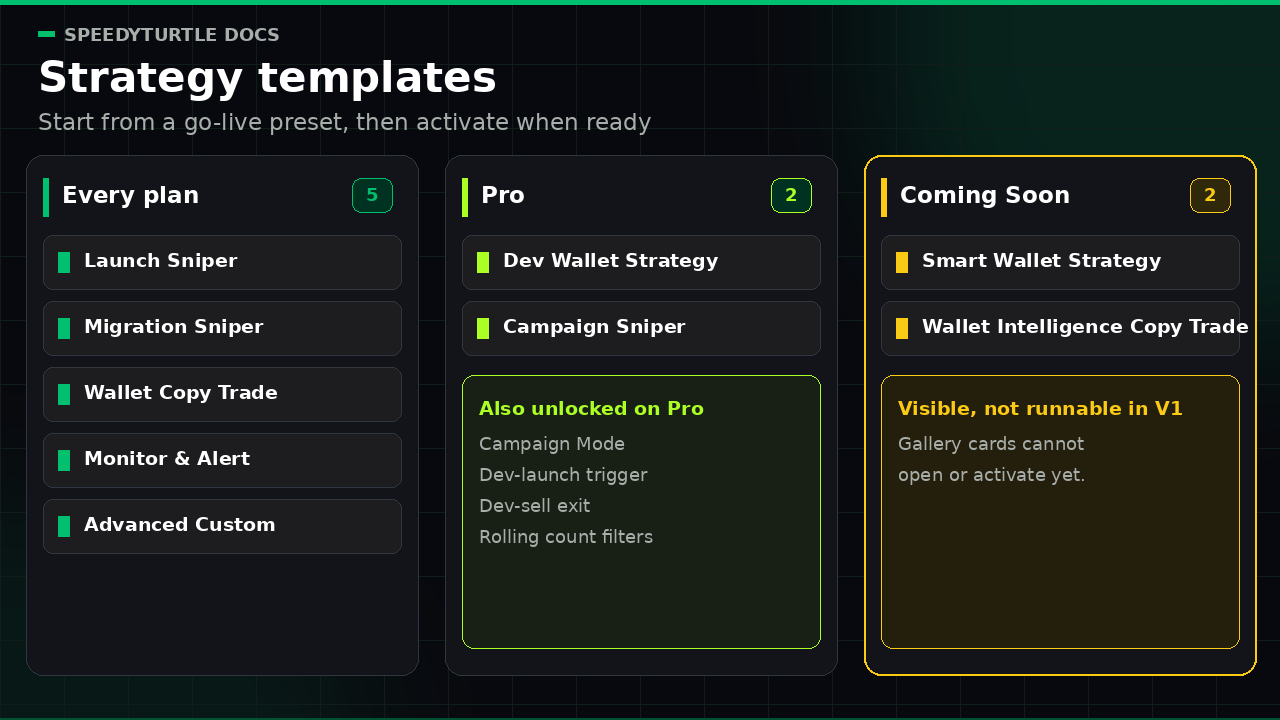
Available on every plan
| Template | Risk | What it does |
|---|---|---|
| Launch Sniper | 🟡 Balanced | Buys brand-new Pump.fun launches in a configured market-cap band, with a short observation window before entering |
| Migration Sniper | 🟡 Balanced | Buys tokens as they migrate to PumpSwap, requiring real pre-migration activity so dead curves are skipped |
| Wallet Copy Trade | 🟡 Balanced | Mirrors buys from wallets you track, capped per signal, and reacts when the copied wallet sells. V1 uses Ignore follow-up buys: the first observed trigger-matching buy claims the token |
| Monitor & Alert | 🟢 Safe | Watches wallets you track and records a notification request when one of them buys (switch the trigger to sells if you prefer) — notifications only, no buying or selling. A recorded request is not a Telegram delivery receipt |
| Start from scratch (Advanced Custom) | 🔴 Degen | Opens the fixed-Buy builder with a minimal valid skeleton: pick an available trigger, stack filters, and wire your own exits. The THEN action stays Buy on this template; Copy buy and Notify only come from their dedicated templates. Planned trigger blocks remain visible but disabled as Coming Soon; premium blocks still need their tier to launch |
Pro
| Template | Risk | What it does |
|---|---|---|
| Dev Wallet Strategy | 🔴 Degen | Buys launches created by specific dev wallets you trust, using the Pro Dev-launch trigger |
| Campaign Sniper | 🔴 Degen | Launch sniping under campaign limits — a bounded session budget and trade count on top of the usual caps |
Coming Soon
| Template | Risk | What it will do |
|---|---|---|
| Smart Wallet Strategy | 🟡 Balanced | Planned Pro copy-trade template with Wallet Intelligence win-rate and trade-count filters |
| Wallet Intelligence Copy Trade | 🟢 Safe | Planned Pro copy-trade template that sizes to the wallet's buy and requires realized-profit and trade-count filters |
Info
Coming Soon templates stay visible in the gallery with a lock/label, but they are non-interactive: you cannot open, configure, or activate them in V1. Live templates are gated by the features they use, not just their name. A Pro template you can open still cannot activate until your plan includes its required capabilities. See Plans and Pricing and Wallet Intelligence.
Start from scratch
In the gallery, Advanced Custom appears as the dashed Start from scratch entry rather than as a separate template card. It opens the same fixed-Buy builder described above. See Strategy Builder.
Activate, pause, and resume
- Activate a strategy to start it running. It begins watching for its trigger immediately.
- Pause a running strategy to stop new entries. Exit rules on open positions keep running, and you can resume at any time.
- Resume a paused strategy to start watching for new entries again.
Pausing is reversible and takes effect right away. Resuming re-checks the strategy against your current plan and the public release policy before it goes live again. A strategy saved earlier with a Coming Soon trigger, filter, template, or blocked setting must be changed to an available definition before it can be activated or resumed — and after first activation that change means Duplicate or a new Draft, not Edit.
How many strategies can run at once
Your plan sets how many strategies you can have running (Active) at the same time:
| Plan | Active strategies |
|---|---|
| Minimum | 3 |
| Pro | 10 |
This single limit covers every strategy type together. Drafts and paused strategies do not count. Pausing a running strategy frees a slot; activating or resuming one uses a slot. The limit is checked the moment you activate or resume.
If you hit the limit, pause a running strategy to free a slot, or upgrade your plan.
Duplicate and delete
- Duplicate copies a validated go-live strategy into a new Draft named with a length-safe
(copy)suffix and opens that Draft in the Builder. The source strategy is unchanged, and the copy does not consume an active slot until you activate it. Use Duplicate when you want different rules after a strategy has already been activated. - Delete is available only for a never-activated Draft. After the first successful activation, a strategy cannot be deleted from Strategy Hub; keep it Paused if you no longer want it running. History remains in your logs.
Related pages
- Strategy Builder — the building blocks behind every template
- Risk Center & Campaign Mode — limits and bounded campaign sessions
- Plans and Pricing — what each tier unlocks
Documentation maintained by SpeedyTurtle Labs.